There are no items in your cart
Add More
Add More
| Item Details | Price | ||
|---|---|---|---|
How to Download & Add Your CloudDevOpsHub Certificate to LinkedIn
A Complete Step-by-Step Guide to Claiming Your Verified Certificate, Adding Credentials to Your Profile, and Sharing Your Achievement on LinkedIn
Follow these 9 sequential steps to claim, download, add to profile, and post your CloudDevOpsHub certificate on LinkedIn:
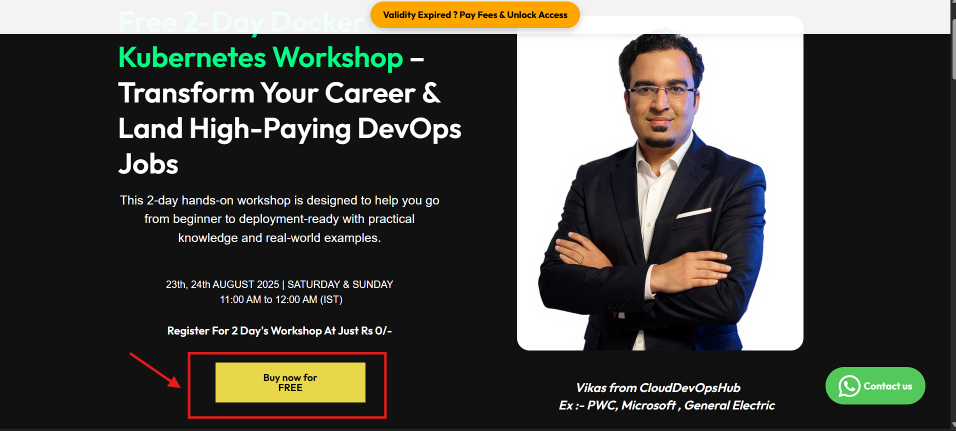
Visit the official CloudDevOpsHub course or workshop page (e.g. Free 2-Day Docker & Kubernetes Workshop). Click the yellow "Buy now for FREE" or "Enroll Now" button to access the learning portal.
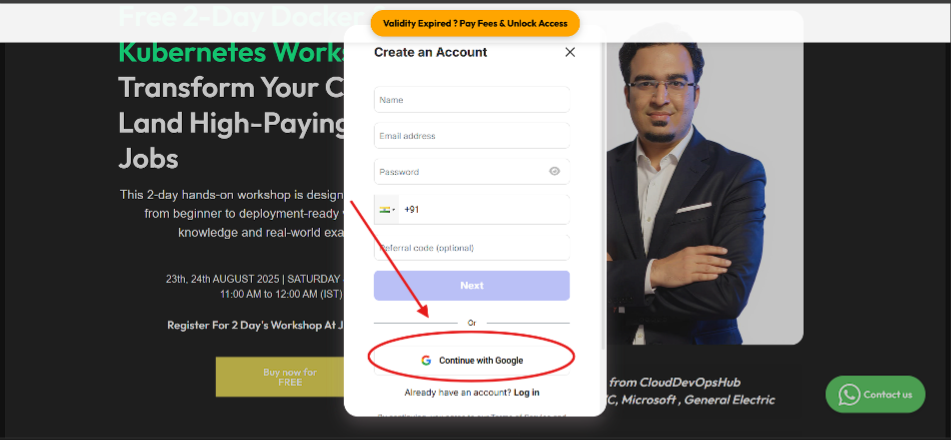
When the sign-in modal pops up, click "Continue with Google" for instant single sign-on (SSO) into your student dashboard.
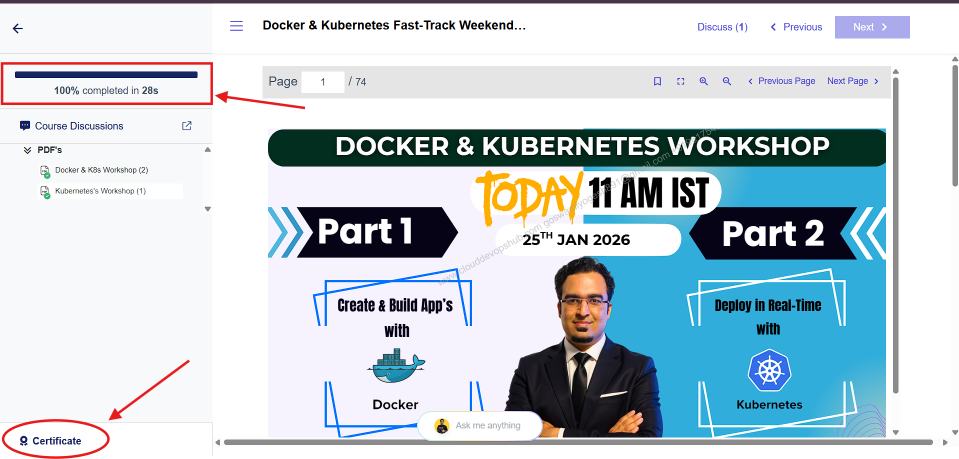
Work through the hands-on session videos, slides, and lab guides. Once your progress indicator reaches "100% completed", the green checkmark unlocks the "Certificate" button located at the bottom left of the course sidebar.
Clicking Certificate opens the "Get Certificate" modal. To save a high-resolution PDF certificate to your computer, click the blue here hyperlink text ("To download your certificate, click here").
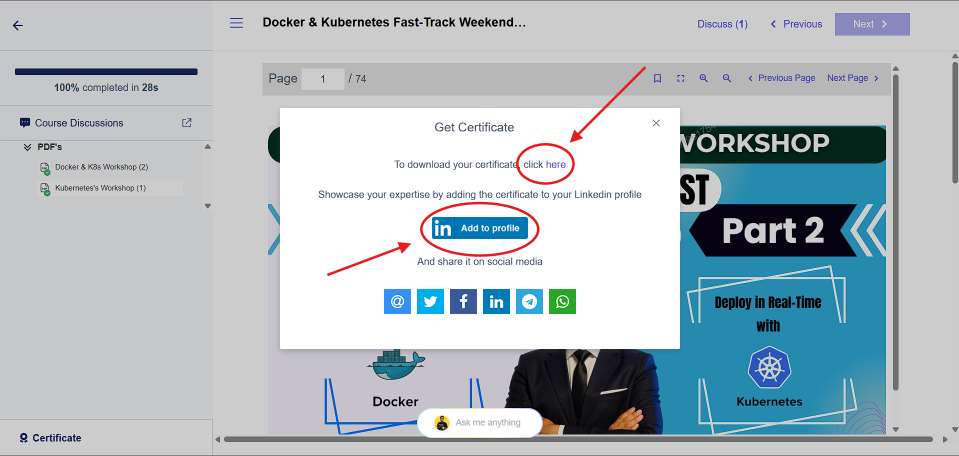
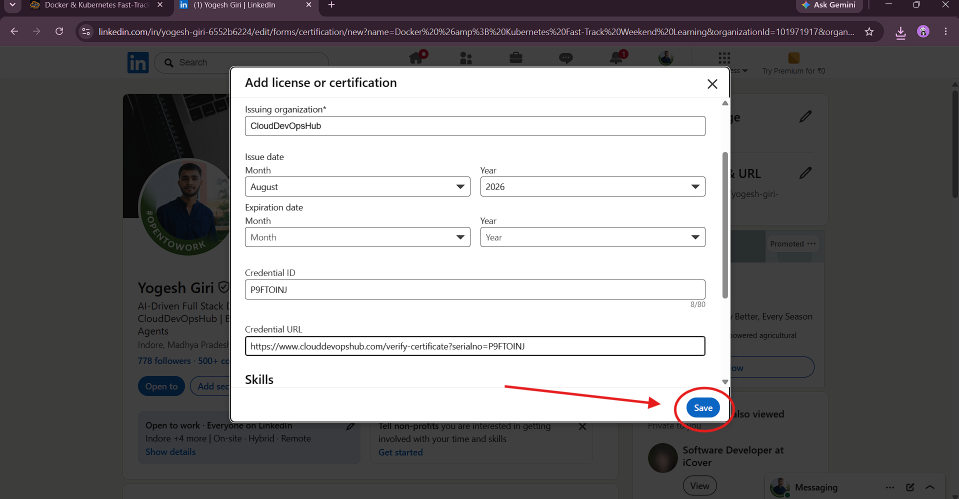
In the Get Certificate modal (Figure 4), click the blue "in Add to profile" button. This opens LinkedIn's certification form automatically pre-filled with your official credential details:
Docker & Kubernetes Fast-Track Weekend LearningCloudDevOpsHubAugust 2026)P9FTOINJ)https://www.clouddevopshub.com/verify-certificate?serialno=P9FTOINJClick the blue "Save" button at the bottom right of the modal.
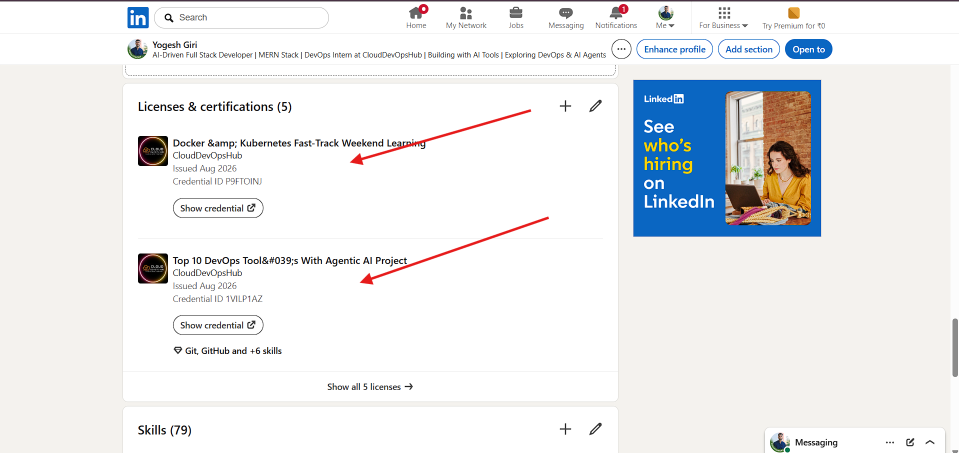
Your certificate is now featured permanently under the "Licenses & certifications" section of your LinkedIn profile! Recruiters viewing your profile can click "Show credential" to verify your certificate on CloudDevOpsHub.
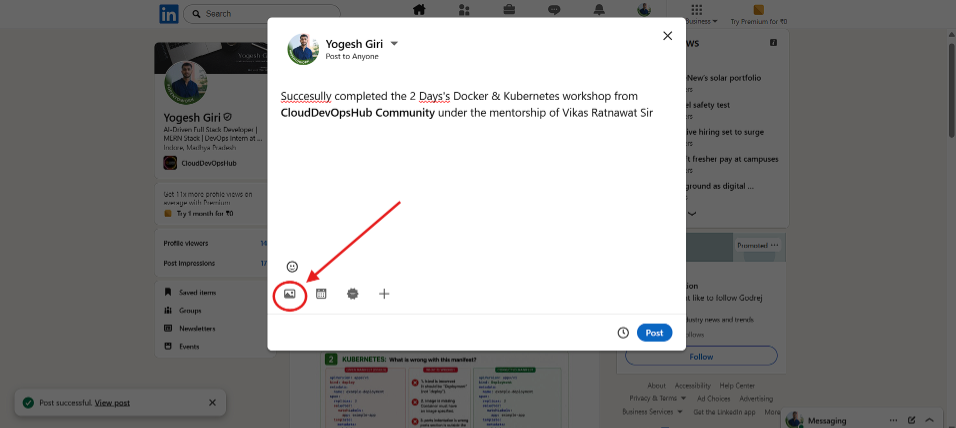
To share your achievement with your professional network, go to your LinkedIn feed and click "Start a post". Write your post description and click the Media / Image icon (circled in red in Figure 7) to attach your certificate graphic.
Select your downloaded certificate image file. Review the preview in LinkedIn's media editor window and click the blue "Next" button at the bottom right.
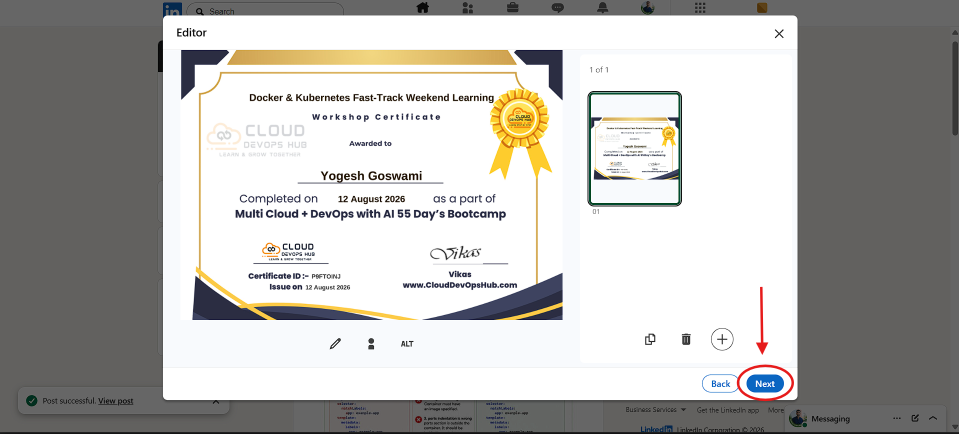
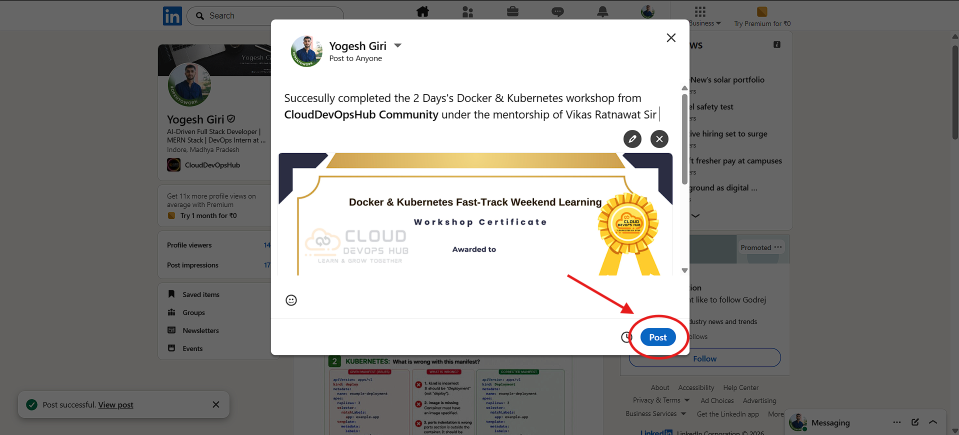
Review your post text, tag your mentors (e.g. @Vikas Ratnawat and @CloudDevOpsHub), and click the blue "Post" button (Figure 9) to publish your certificate to your feed!
Answer: The Certificate button unlocks automatically only after your progress bar reaches 100% completed. Ensure you have watched all required videos and marked all PDF materials as completed in the left navigation panel.
Answer: Yes! Every certificate includes a unique Credential ID and direct verification URL. Anyone clicking "Show credential" on your LinkedIn profile will see your official CloudDevOpsHub verification page.
Answer: Click the "Certificate" button, and inside the modal click the blue "click here" link. This downloads a high-resolution, print-ready PDF certificate directly to your device.