There are no items in your cart
Add More
Add More
| Item Details | Price | ||
|---|---|---|---|

How to Raise a Support Request in Google Cloud Platform (GCP)
A DevOps Engineering Guide: Cloud Customer Care, Severity Levels, Diagnostic Log Bundles & Fast Ticket Resolution
Running mission-critical infrastructure on Google Cloud Platform (GCP) requires knowing how to promptly escalate technical bugs, infrastructure outages, billing disputes, and quota increases. Google Cloud provides comprehensive enterprise technical support via Cloud Customer Care.
In this guide, you will learn step-by-step how to navigate the Google Cloud Support Console, determine the correct severity classification, package essential diagnostic details for swift resolution, and track your case until closure.
Before opening a ticket, verify the Customer Care Plan associated with your Google Cloud Organization or Billing Account:
| Support Plan | Target Use Case | P1 Critical SLA | Channels |
|---|---|---|---|
| Basic Support (Free) | Billing & Account issues, Quotas, Public documentation | N/A (No Technical SLA) | Web Console (Billing only) |
| Standard Support | Development environments, non-mission-critical workloads | 4 hours (Business hours) | Web Console |
| Enhanced Support | Production enterprise workloads, high availability services | 1 hour (24/7) | Web Console, Chat & Phone |
| Premium Support | Enterprise mission-critical, dedicated Technical Account Manager (TAM) | 15 minutes (24/7) | Web, Phone, Chat, TAM Escalation |
devops-prod-cluster-982).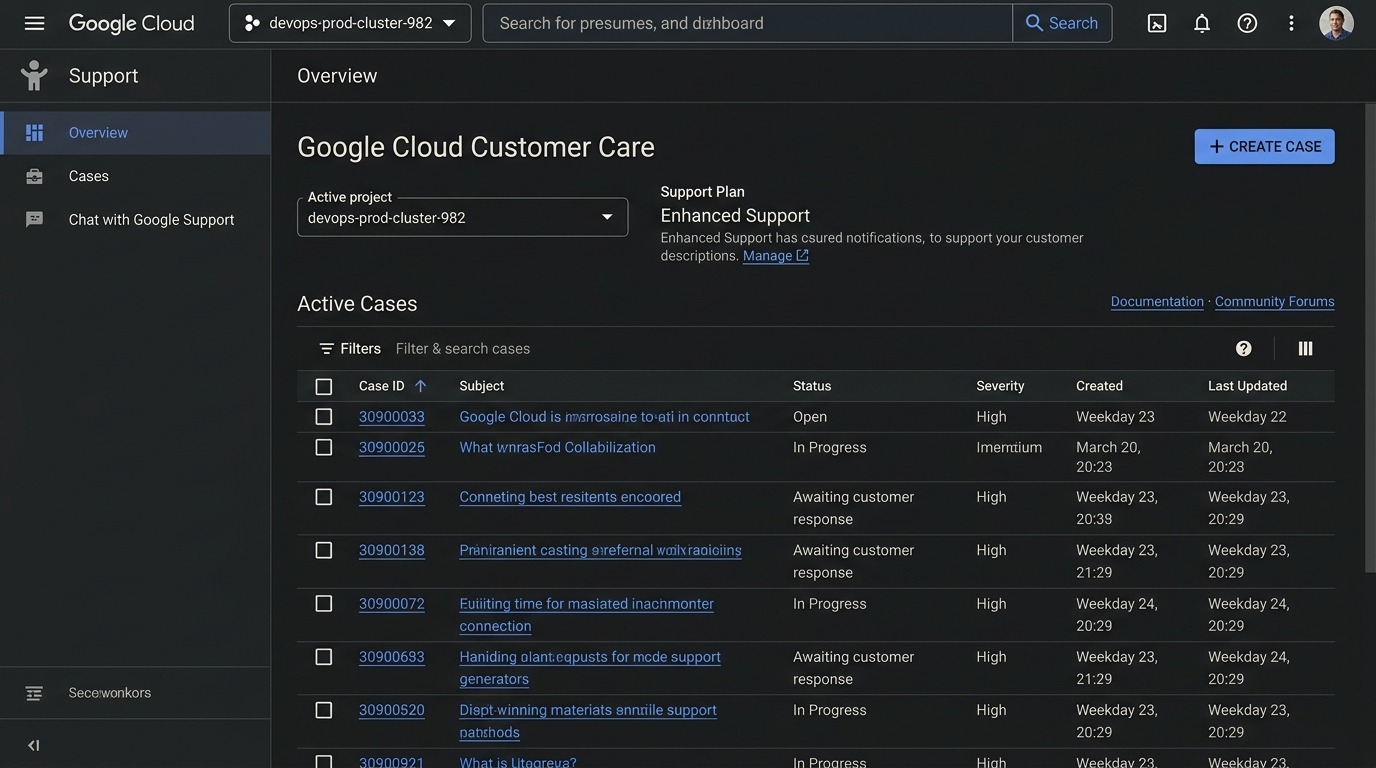
Figure 1: Google Cloud Customer Care Dashboard — Accessing Overview, active cases, and clicking '+ CREATE CASE'.
Compute Engine, Google Kubernetes Engine (GKE), Cloud Storage, or Cloud Billing).VM instances & Disks or Networking / Cloud NAT).web-app-vm-02 in us-central1-a).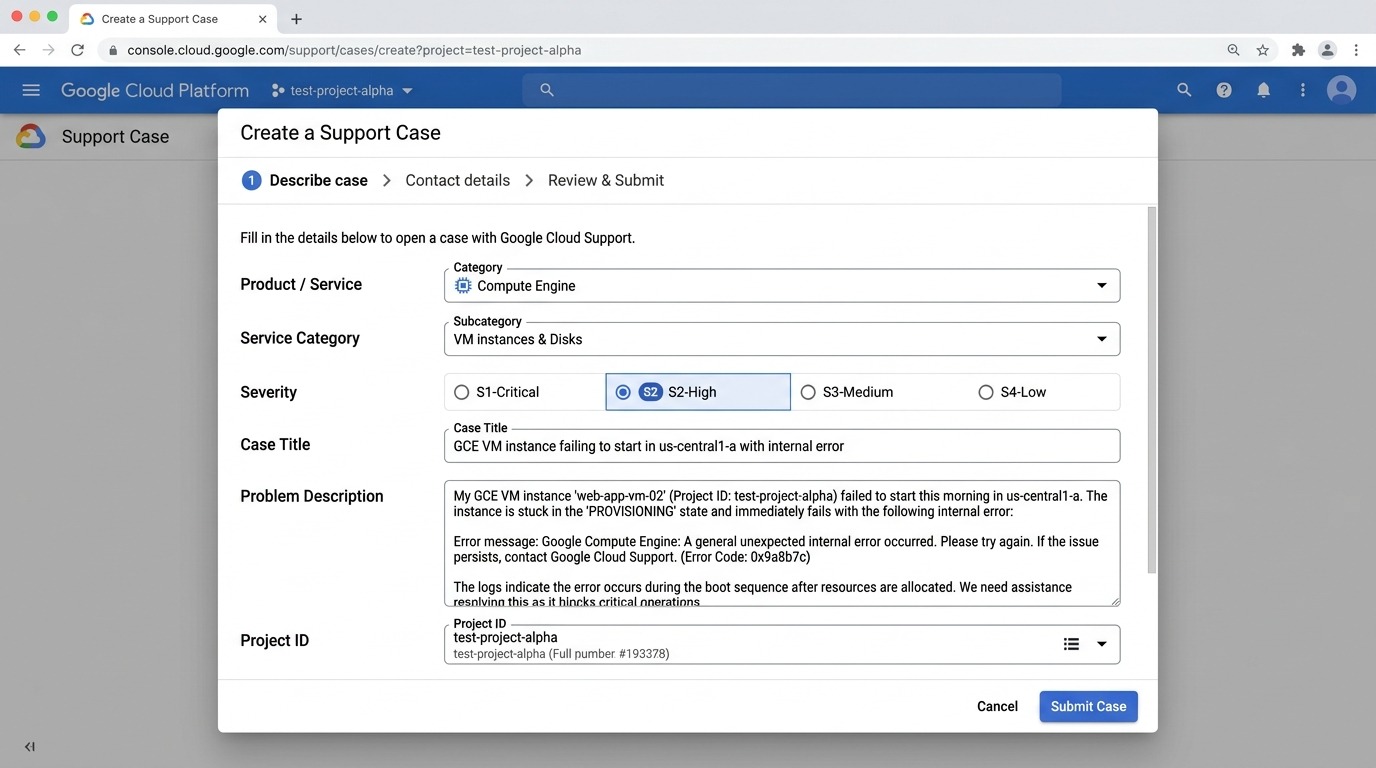
Figure 2: Creating a Support Case — Selecting Category, Subcategory, Severity level, and entering problem description.
Selecting the correct severity ensures Google engineers triage your issue in accordance with SLA agreements:
| Severity | Definition & Impact | Example Scenario |
|---|---|---|
| S1 / P1 - Critical | Critical production outage or severe security breach with zero workaround available. 24/7 continuous engineer engagement required. | Entire production GKE cluster or database unreachable for customers globally. |
| S2 / P2 - High | Significant business impact; core features severely degraded but service is partially operational. | Compute Engine instances failing to autoscale during traffic peaks; builds failing. |
| S3 / P3 - Medium | Moderate to low business impact; non-critical functions impaired with an available workaround. | Cloud Monitoring dashboard metrics delayed or Cloud Logging export query glitch. |
| S4 / P4 - Low | General questions, feature requests, or best-practice architectural inquiries. | Guidance on optimal BigQuery partitioning strategies. |
Once submitted, Google Cloud assigns a unique Case ID (e.g., #30900123). You can manage the case directly through the Case Details view:
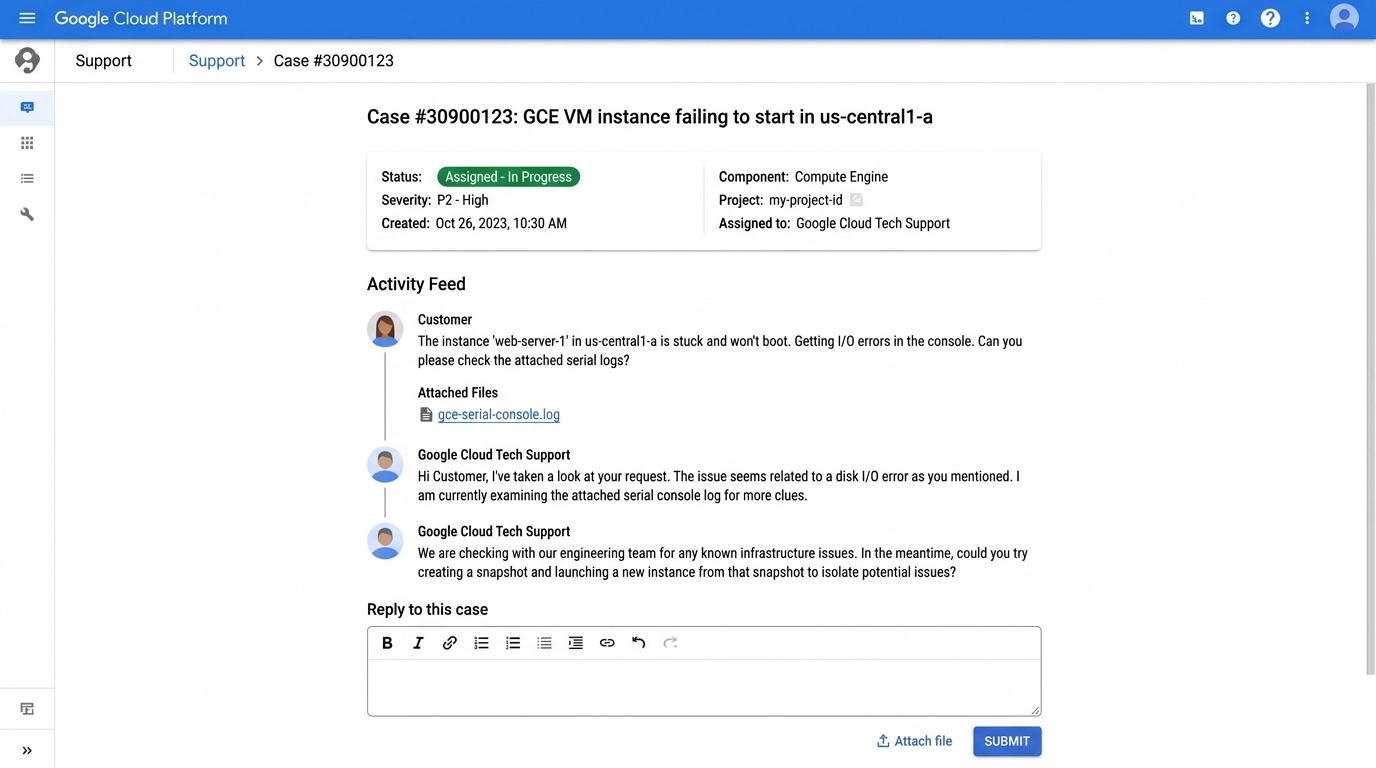
Figure 3: Active Support Case View — Tracking assigned engineer notes, diagnostic attachments, and conversation history.
projects/my-prod-project/zones/us-central1-a/instances/web-server-01
gcloud compute instances get-serial-port-output web-server-01 --zone=us-central1-a > serial.log
Raising an effective GCP support ticket is a vital DevOps skill. By choosing the right severity, attaching comprehensive logs, and clearly outlining reproduction steps, you ensure minimal downtime and fast resolution from Google Cloud's engineering specialists.