There are no items in your cart
Add More
Add More
| Item Details | Price | ||
|---|---|---|---|

How to Create a Support Request in Microsoft Azure Portal
A Complete DevOps Visual Guide: Support Plans, Issue Classification, Diagnostic Attachments & Severity SLAs
Managing cloud infrastructure on Microsoft Azure requires being prepared when services experience unexpected failures, network latency, resource quota limits, or unexpected billing spikes. Microsoft provides an integrated Help + Support center directly in the Azure Portal.
In this guide, you will learn how to open technical, billing, and subscription support tickets, leverage the built-in diagnostic tools, set proper severity levels, and work with Microsoft Support Engineers to get quick resolutions.
Every Azure subscription includes Basic Support at no additional cost. For technical break-fix assistance on production resources, paid support tiers provide defined response time SLAs:
| Support Plan | Target Audience | Severity A (Critical) SLA | Support Channels |
|---|---|---|---|
| Basic (Free) | Billing, Subscription Management & Quotas | N/A (No Tech Support) | Azure Portal (Billing only) |
| Developer | Non-production trials & dev testing | N/A (Sev C only: < 8 business hrs) | Email (Business hours) |
| Standard | Production enterprise workloads | < 1 hour (24/7) | 24/7 Email & Phone |
| Professional Direct | Business-critical production systems | < 1 hour (24/7 with pool of experts) | 24/7 Phone, Email & Advisory |
Help + support and select it.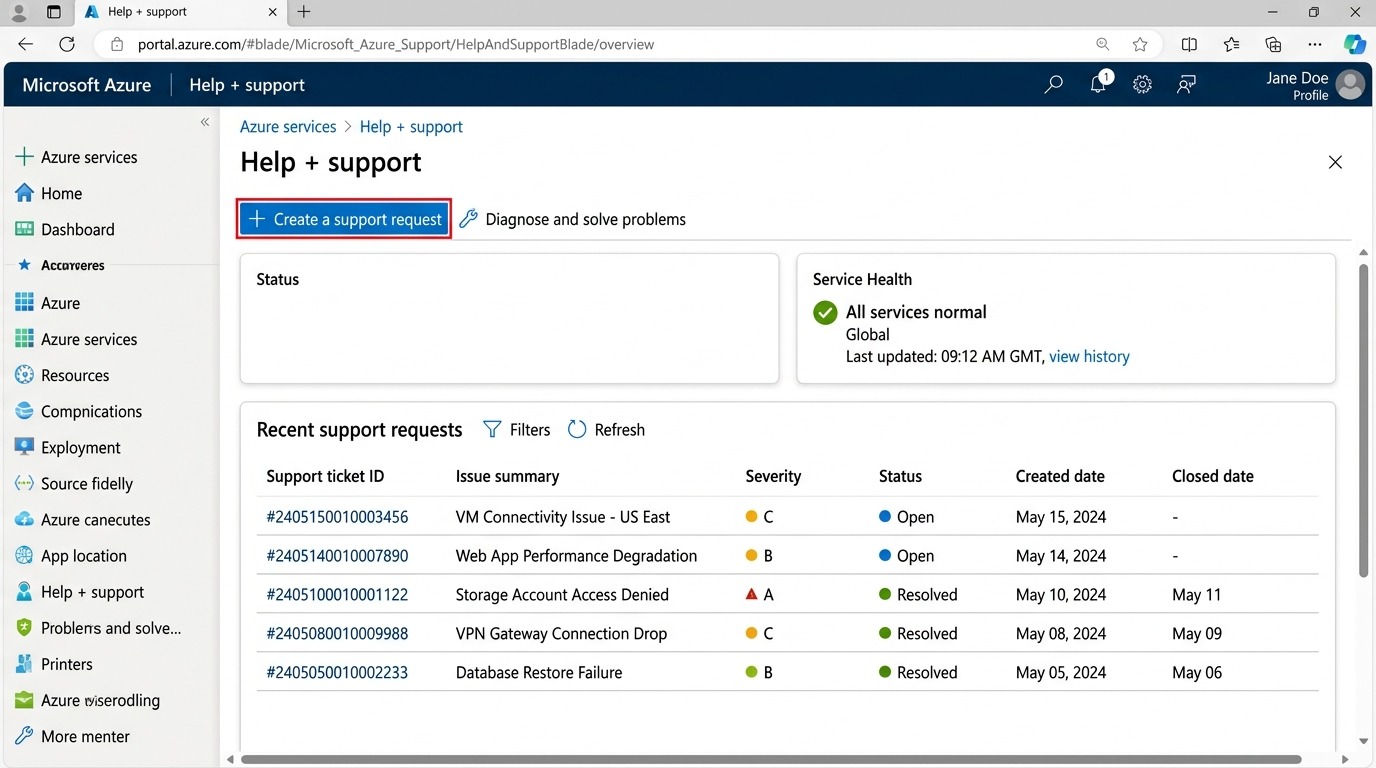
Figure 1: Azure Portal — Navigating to Help + Support and clicking '+ Create a support request'.
Fill out the foundational classification fields:
Technical, Billing, Service and subscription limits (quotas), or Subscription management.Production-Enterprise-Sub).Virtual Machine running Linux, Azure Kubernetes Service (AKS), Azure SQL Database).vm-prod-api-01).Cannot connect to VM (SSH/RDP) > SSH connection timeout).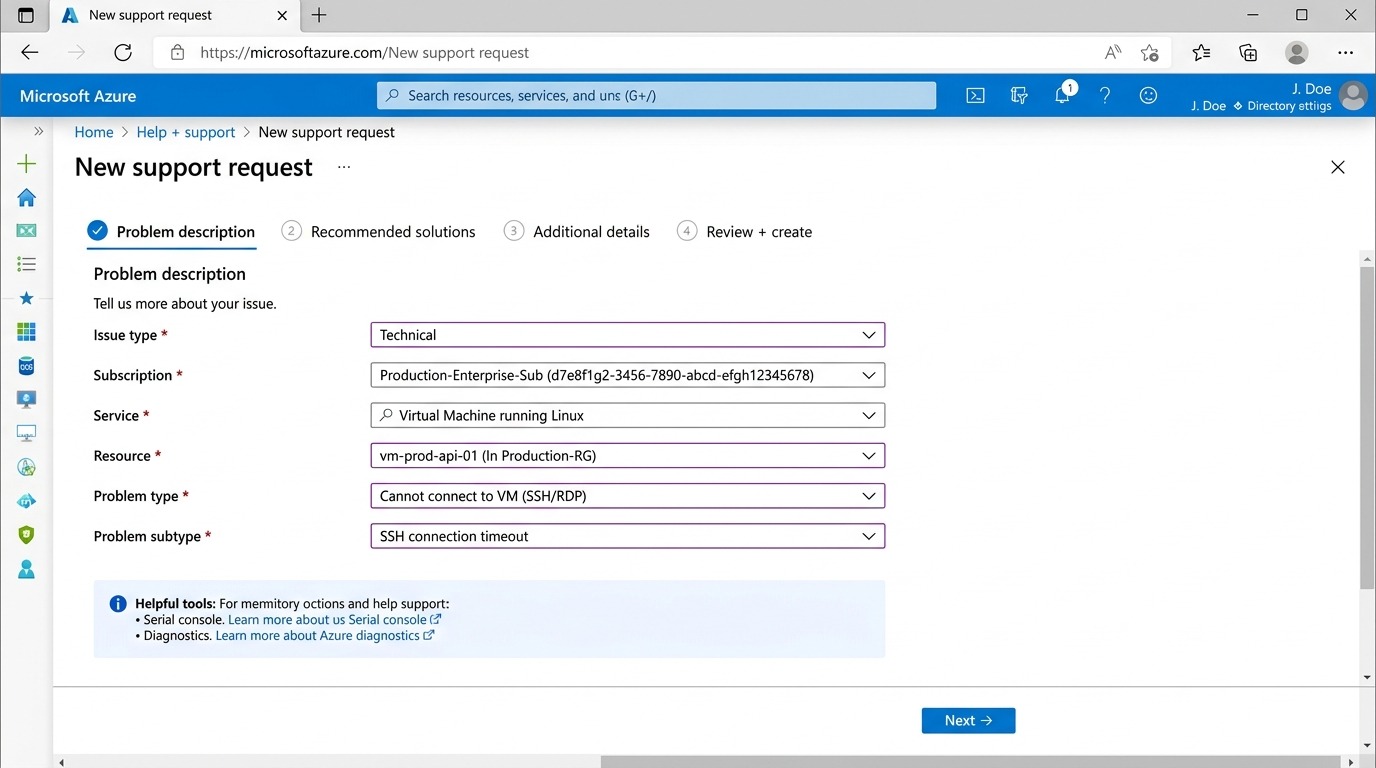
Figure 2: New Support Request — Specifying Issue Type, Subscription, Service, Resource, and Problem Subtype.
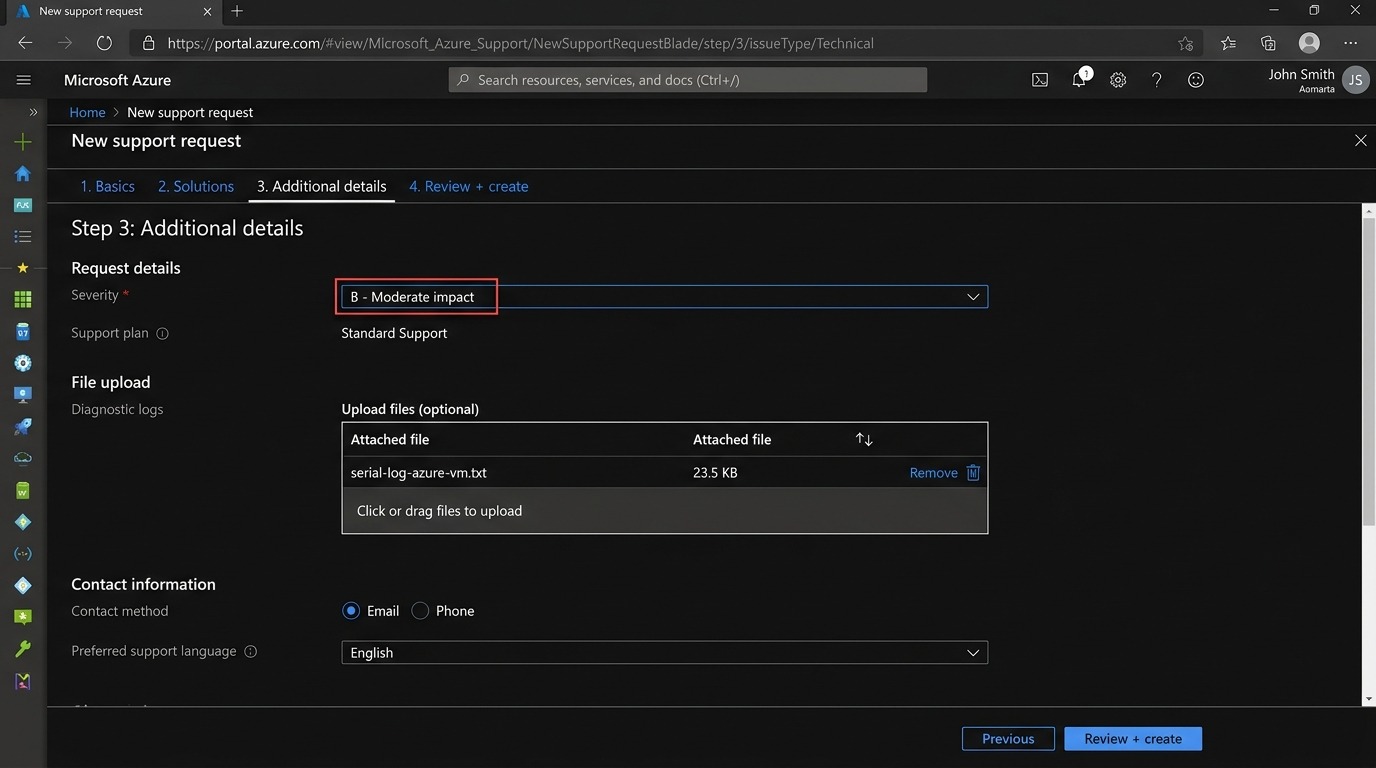
Figure 3: Configuring Severity level, uploading diagnostic logs, and confirming contact preferences.
DevOps automation engineers can also inspect and create support tickets programmatically using the Azure CLI Support Extension:
# 1. Install Azure support extension

az extension add --name support


# 2. List available support service problem classifications

az support services list --output table


# 3. Create a technical support ticket

az support tickets create \

  --ticket-name "vm-connectivity-ticket-01" \

  --title "Cannot connect to Linux VM vm-prod-api-01 via SSH" \

  --description "SSH port 22 timing out following kernel update on 2026-08-22 08:30 UTC" \

  --problem-classification "/providers/Microsoft.Support/services/.../problemClassifications/..." \

  --severity "moderate" \

  --contact-first-name "DevOps" \

  --contact-last-name "Engineer" \

  --contact-method "email" \

  --contact-email "devops@mycompany.com"
/subscriptions/xxxx-xxxx/resourceGroups/Production-RG/providers/Microsoft.Compute/virtualMachines/vm-prod-api-01
Knowing how to effectively raise and manage Azure support tickets ensures your organization minimizes downtime when facing complex cloud infrastructure challenges. Proper classification, accurate severity setting, and upfront diagnostic logs give Microsoft engineers everything they need to resolve your ticket quickly.