How to Create a Budget & Billing Alarm in GCP: Complete Guide (2026)

Protect Your Google Cloud Credits & Avoid Unexpected Bills with Budgets and Email Alerts

Published: July 2026

Whether you are using the $300 Google Cloud Free Trial or managing active workloads on Google Cloud Platform (GCP), setting up a Budget Alarm is mandatory. It ensures you stay informed before your cloud expenditure crosses your expected spending threshold.

In this detailed July 2026 step-by-step tutorial, we will cover how to configure a GCP Billing Budget, set custom percentage thresholds, configure email notifications, and track your active budget dashboard in Google Cloud Console.

Why Create a Budget Alert in Google Cloud?

  • Avoid Bill Shock: Receive automatic email alerts when your costs reach 50%, 80%, or 100% of your defined limit.
  • Predictive Forecast Alerts: GCP warns you when your projected monthly spend will exceed your budget based on current daily consumption.
  • Multi-Project Monitoring: Track spending across all projects or monitor specific projects/services individually.

Prerequisites & Permissions

To create or modify budgets in Google Cloud, ensure your account has the appropriate permissions:

  • You must be a Billing Account Administrator or Billing Account Costs Manager on your GCP Billing Account.
  • Access to the Google Cloud Console.

Step-by-Step: Setting Up a GCP Budget & Alert

1 Open Billing & Navigate to Budgets & Alerts

Log in to the Google Cloud Console. Click the Navigation Menu (☰) in the top-left corner, hover over Billing, and select Budgets & alerts.
Google Cloud Billing Navigation Menu

2 Click "Create Budget" & Define Budget Scope

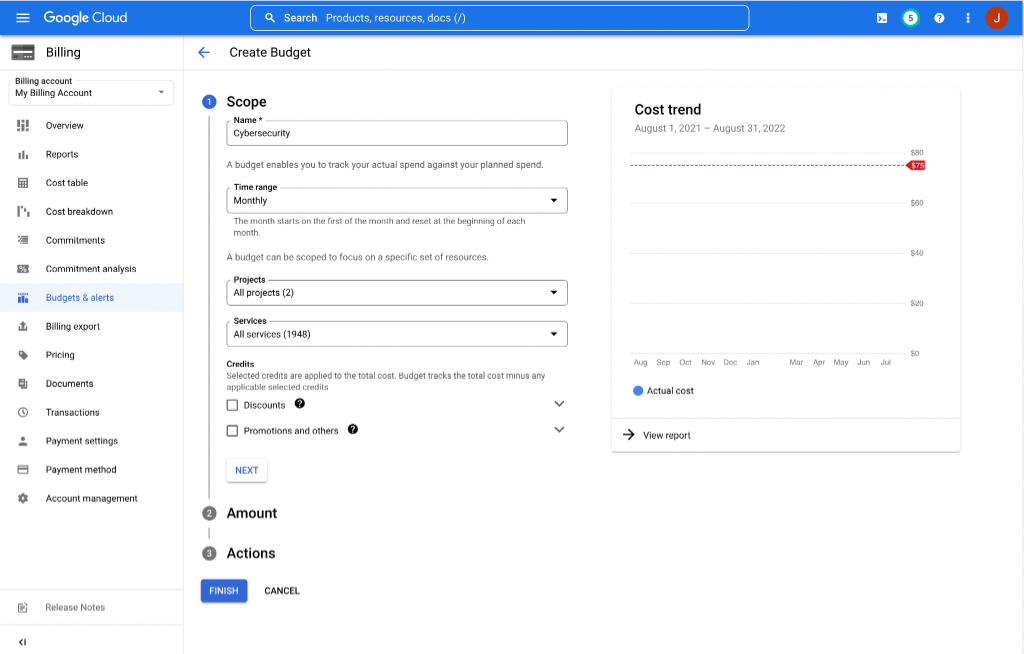
Click the CREATE BUDGET button at the top of the page. In Step 1 (Scope), fill out the following:

  • Name: Type a descriptive budget name (e.g., Monthly-DevOps-Practice-Budget).
  • Time range: Select Monthly (or Quarterly/Yearly).
  • Projects: Select All projects or choose a specific GCP project.
  • Services: Select All services or pick specific services (like Compute Engine or BigQuery).
Define GCP Budget Name and Scope

3 Set Budget Target Amount ($)

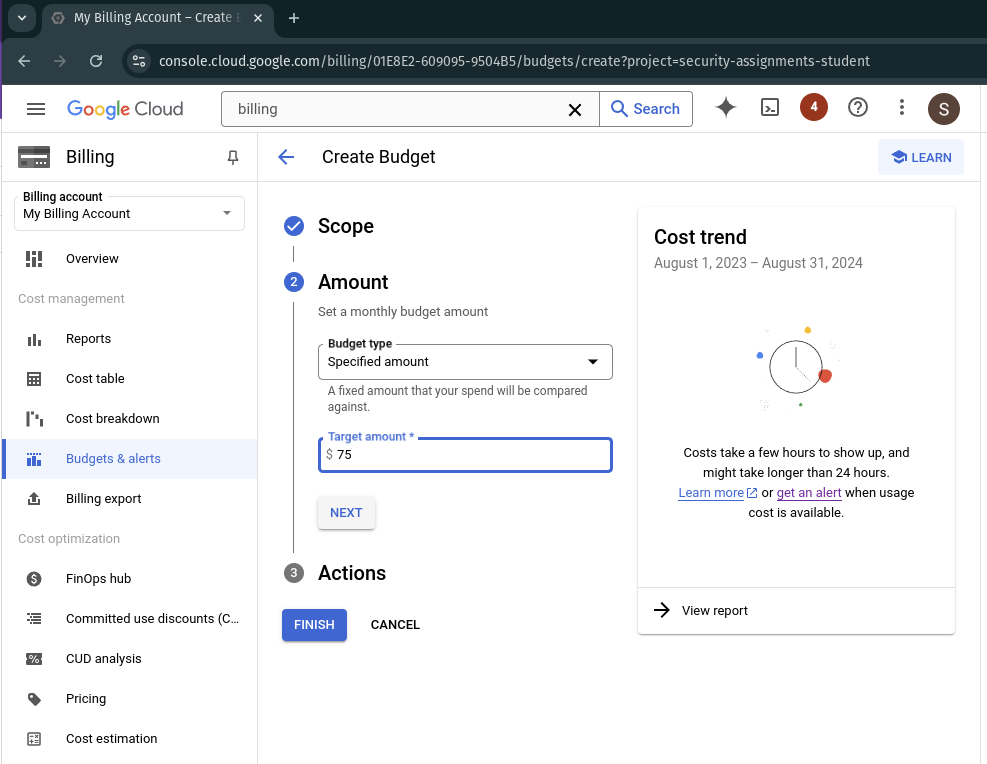
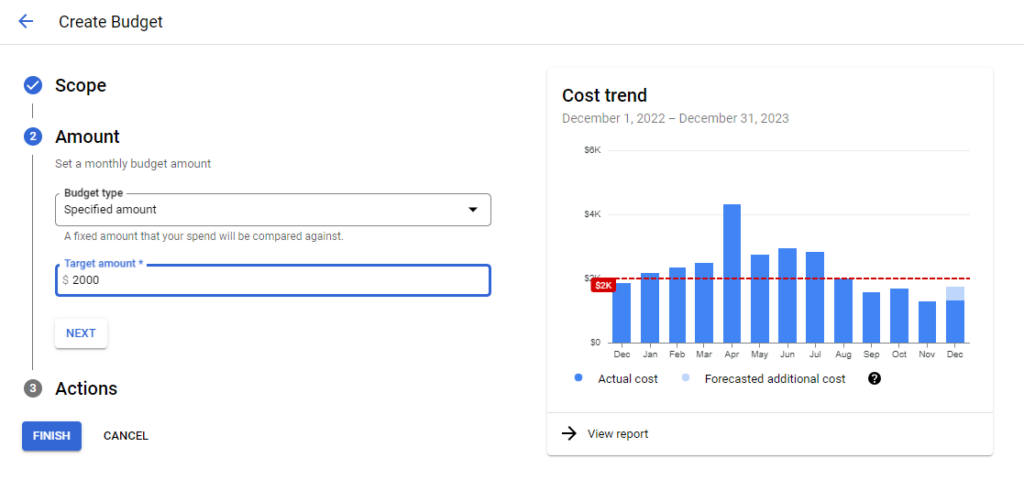
Click Next to move to Step 2 (Amount):

  • Budget type: Choose Specified amount (or Last month's spend).
  • Target amount: Enter your limit in your billing currency (e.g., 10.00 for $10 USD or 50.00).
Set GCP Budget Target Amount

4 Configure Alert Trigger Thresholds

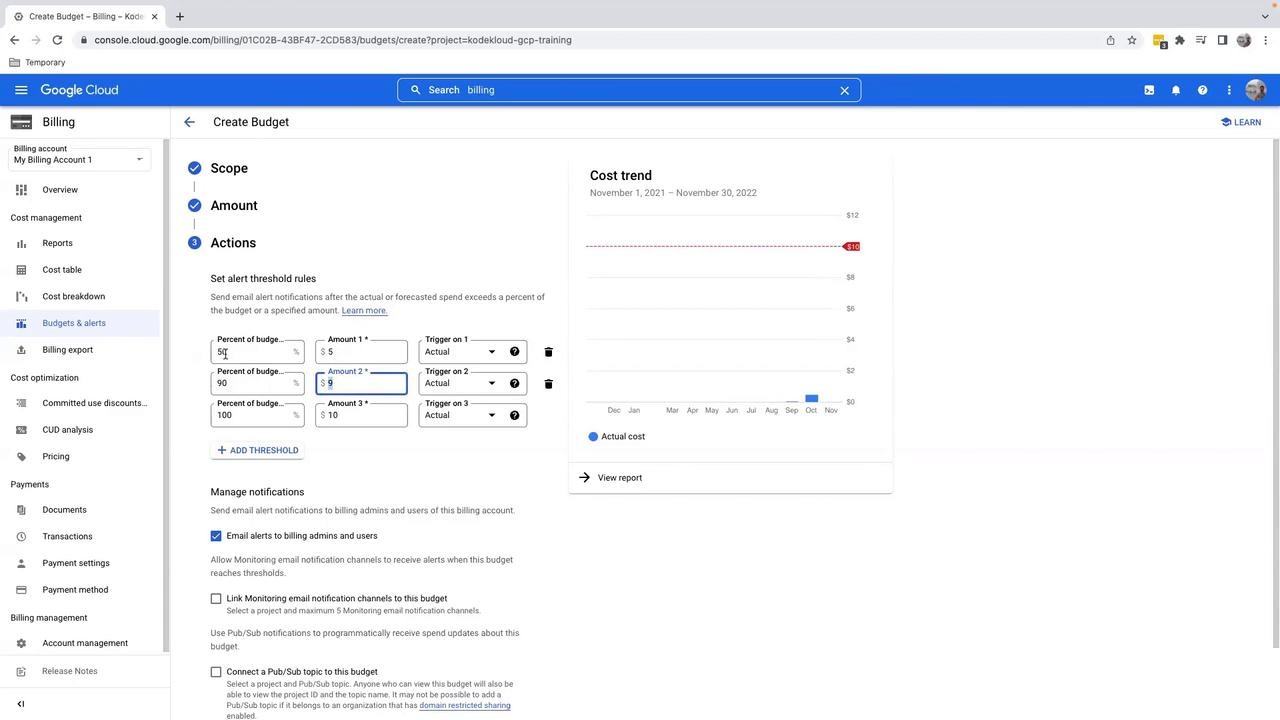
Click Next to proceed to Step 3 (Actions). Define your notification trigger rules:
  • Threshold 1 (50% Actual): Triggers an email when actual costs reach 50% of your target ($5).
  • Threshold 2 (80% Actual): Triggers an email when actual costs reach 80% of your target ($8).
  • Threshold 3 (100% Forecasted): Triggers an alert when GCP calculates that your current daily burn rate will exceed 100% by month-end.
Configure GCP Budget Alert Thresholds

5 Configure Email Notifications & Pub/Sub (Optional)

In the notification settings under Actions:
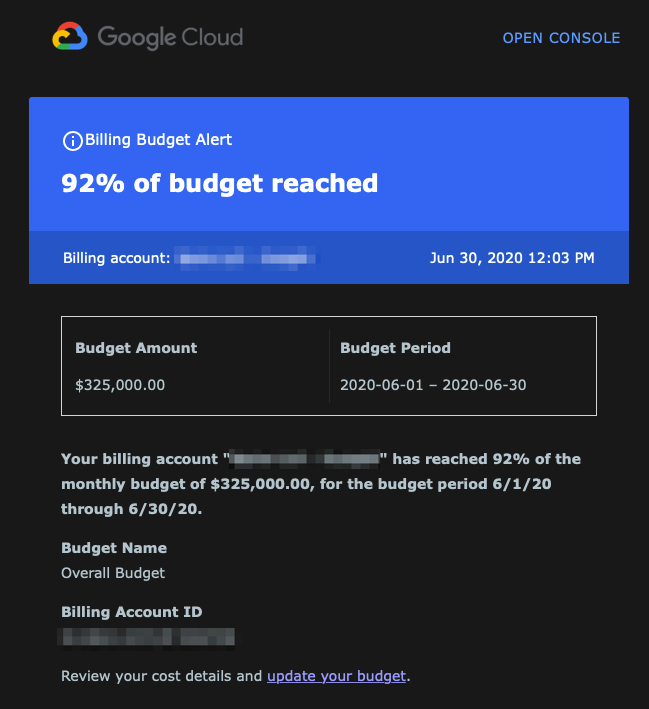
  • Ensure Email alerts to billing admins and users is checked.
  • (Optional Advanced Setting): Check Connect a Pub/Sub topic to this budget if you want to trigger automated Cloud Functions to stop VMs automatically when a budget is exceeded.
GCP Budget Email Alert Notification Settings

6 Click "Finish" & Monitor Budgets Dashboard

Click FINISH to save your budget. You will be redirected to the Budgets & alerts dashboard, where visual progress bars show real-time spending against your configured limits.
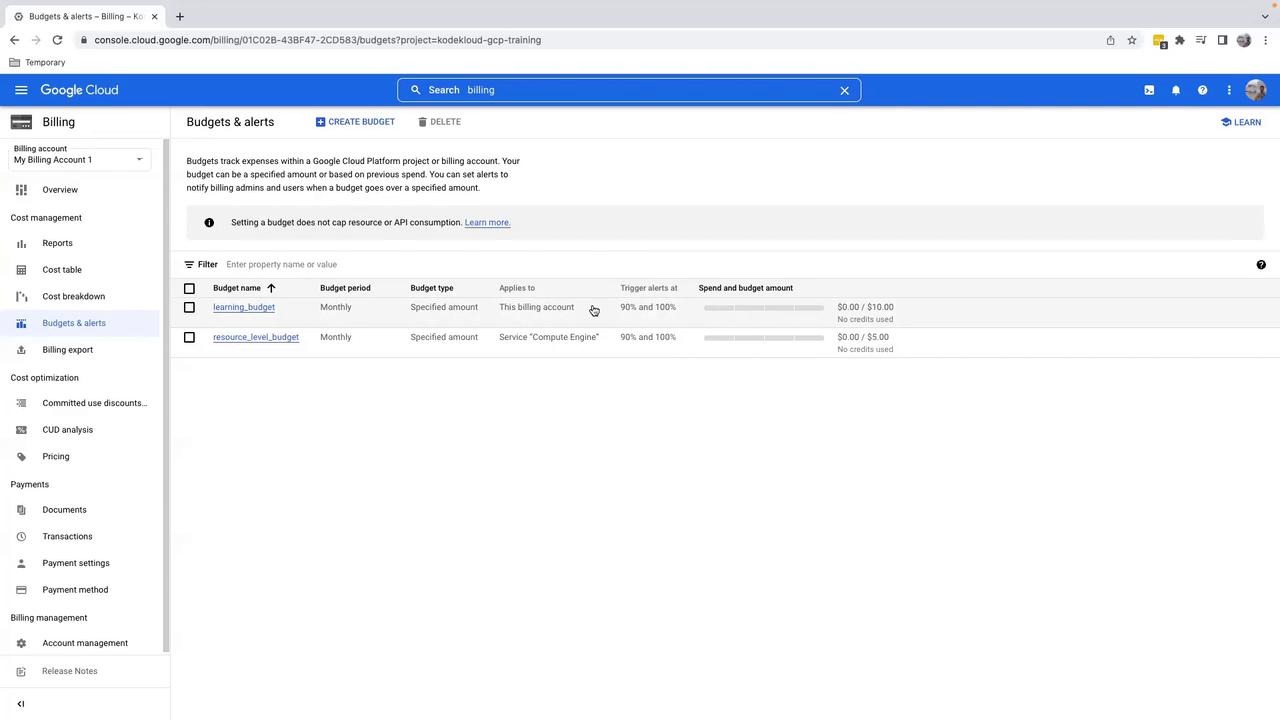
Google Cloud Budgets and Alerts Dashboard

Important Security & Cost Control Tips

Note: Standard GCP budget alerts notify you via email but do not automatically turn off your running resources unless you connect a Pub/Sub automation script. Always remember to manually stop or delete idle VMs, GKE clusters, and SQL databases after practice sessions!

👤
Vikas Ratnawat  From CloudDevOpsHub