There are no items in your cart
Add More
Add More
| Item Details | Price | ||
|---|---|---|---|

How to Create a Budget Alarm in AWS: Complete Step-by-Step Guide (2026)
Protect Your AWS Account from Surprise Bills Using AWS Budgets & CloudWatch Alarms
Published: July 2026
One of the most essential skills every AWS practitioner, developer, and cloud engineer must learn before spinning up resources is setting up a Budget Alarm. Unexpected charges can happen quickly—whether it's an unstopped EC2 instance, an idle NAT Gateway, or forgotten EBS snapshots.
In this guide updated for July 2026, we will walk through every detailed step to create an automated AWS Budget Alarm that sends instant email notifications whenever your monthly spending exceeds your target limit.
Before creating your budget, ensure you have enabled billing alerts in your AWS account preferences:
AWS Budgets allows you to set custom budgets that alert you when your costs or usage exceed (or are forecasted to exceed) your budgeted amount.
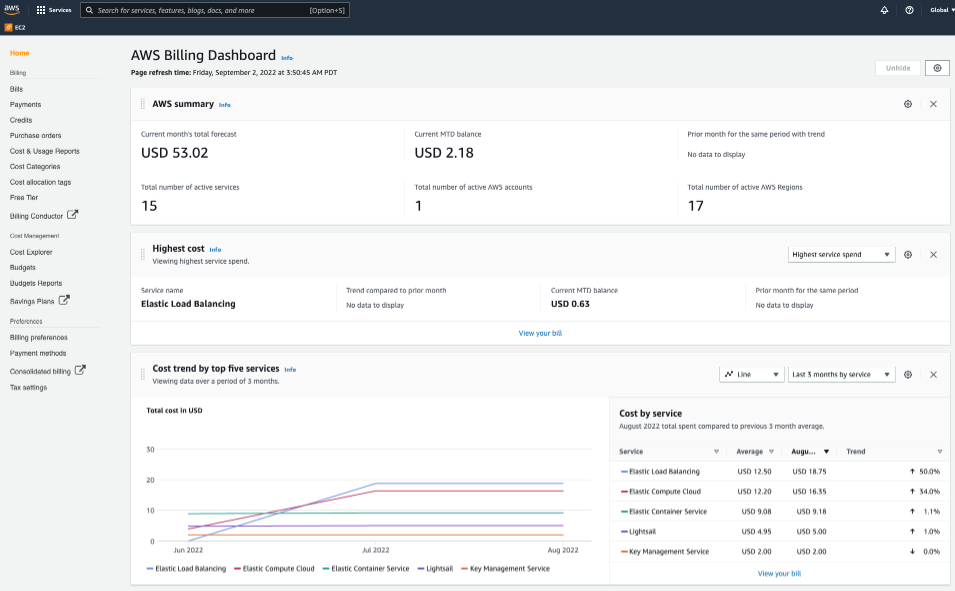
In the top search bar of the AWS Management Console, search for Billing and Cost Management or AWS Budgets and click on the service result.
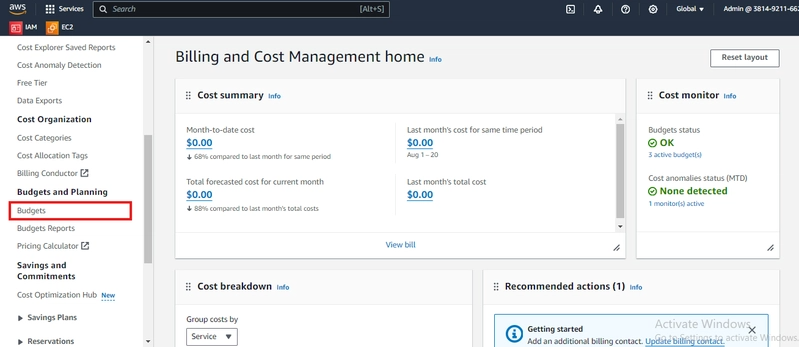
On the left-hand navigation pane, click Budgets under the Cost Management section. Then, click the orange Create budget button in the top-right corner.
AWS offers template options as well as customized setups:
In the Set budget details section, fill in the following details:
Monthly-DevOps-Learning-Budget).10.00 for $10 USD).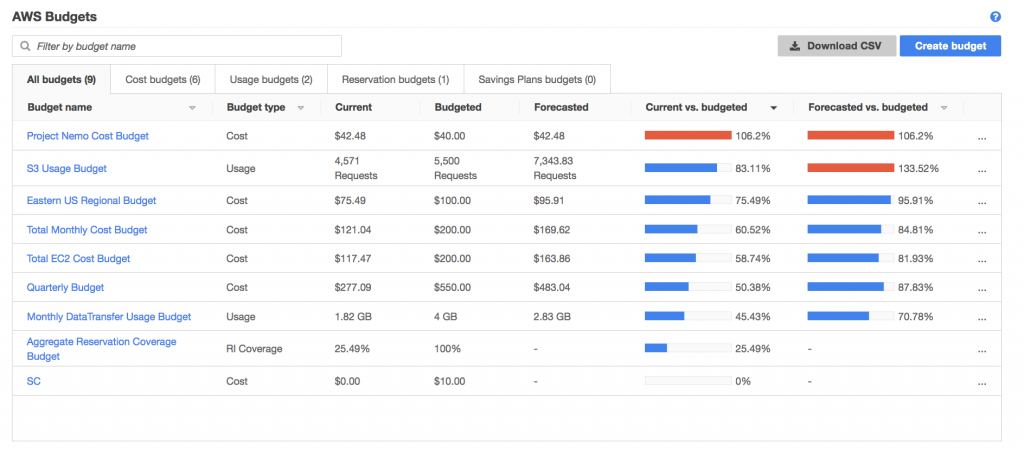
Click Next to proceed to the Configure alerts step. Here, you define when AWS should send you warning emails:
80% of Actual cost. This alerts you when you reach $8 of your $10 budget.100% of Forecasted cost. This alerts you if AWS predicts your usage will exceed $10 by month-end.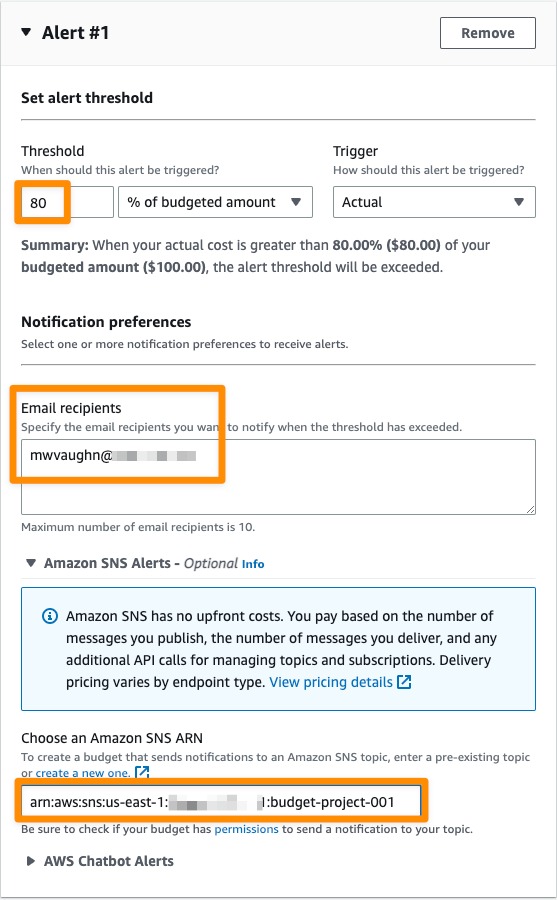
Review all your budget configurations on the summary screen. Verify the budget name, target dollar amount, and recipient email address, then click Create budget.
Your new budget is now active! AWS will continuously monitor your spend and trigger alert emails instantly whenever thresholds are crossed.
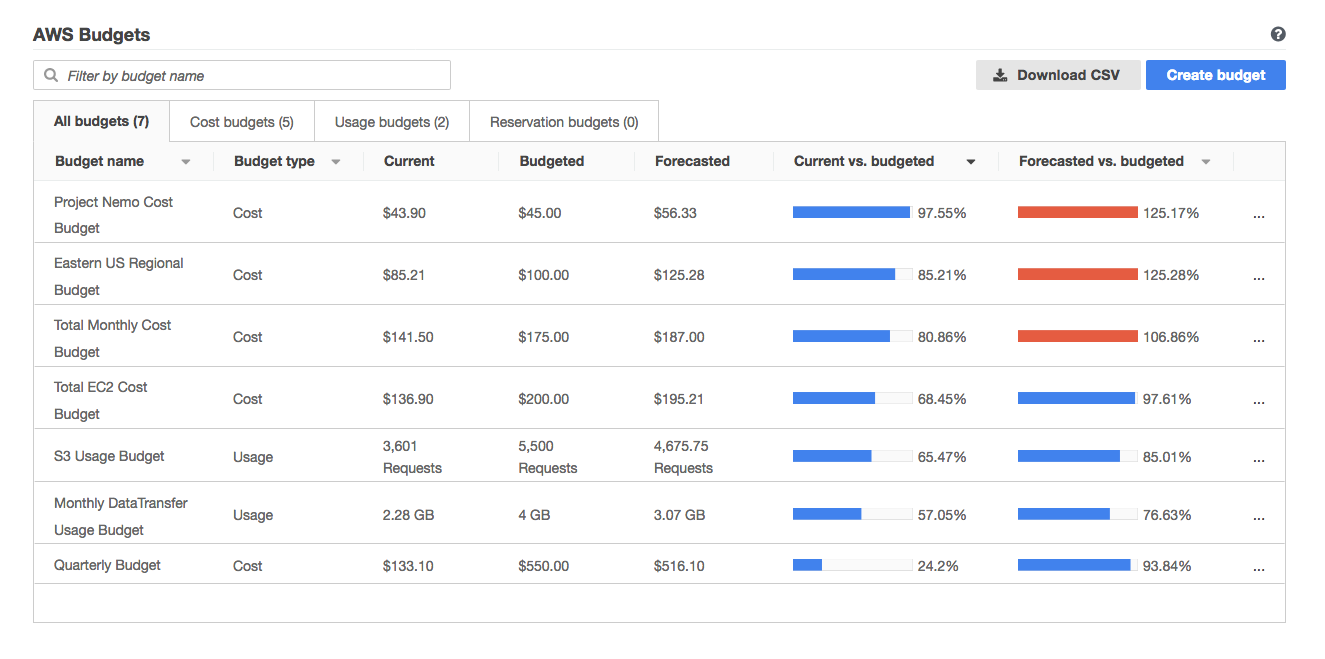
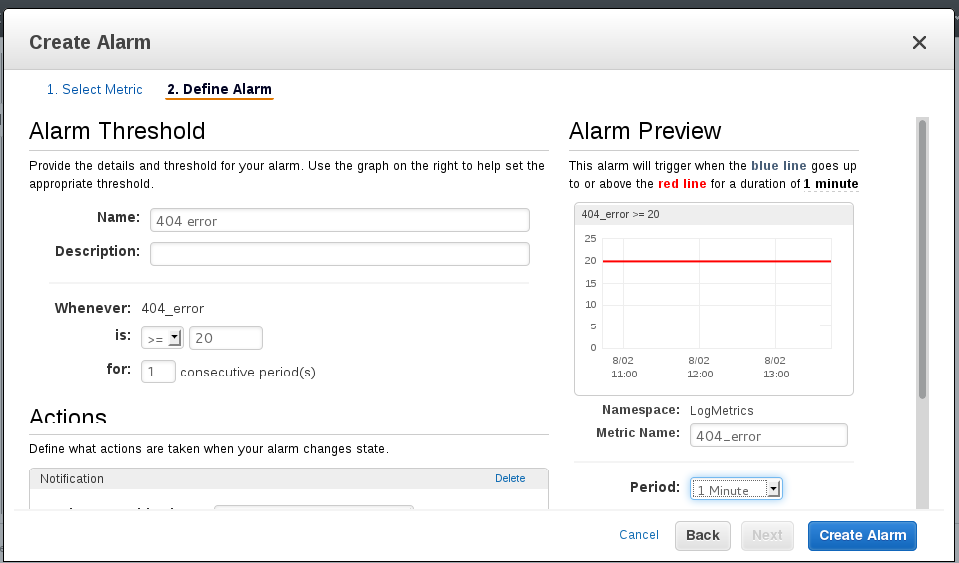
Alternatively, you can create a CloudWatch Billing Alarm using Amazon CloudWatch metrics for EstimatedCharges.
Open the AWS Console, search for CloudWatch, and click Alarms → All Alarms in the left menu.
Click Create alarm → Click Select metric → Choose Billing → Select Total Estimated Charge → Check the currency metric (USD).
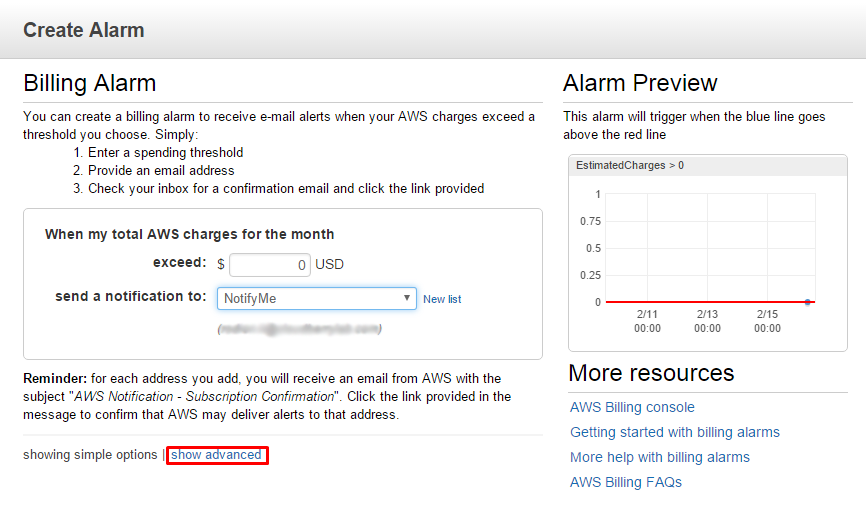
Set condition to Greater than and specify your limit (e.g., 10). In the Notification section, select In alarm, choose Create new topic, enter your email ID, and click Create alarm.
Note: Check your email inbox to confirm the Amazon SNS subscription link to start receiving alerts!